
Forgot your PIN, password, or pattern on your Samsung Galaxy S22 Ultra?
Don’t panic.
This updated 2026 guide explains the official and safe ways to unlock your Galaxy S22 Ultra, including:
- How to unlock without losing data
- What works on Android 13 / 14 (One UI 5 / 6)
- US carrier model differences (Verizon, AT&T, T-Mobile)
- What no longer works in 2026
This guide applies to US models:
- SM-S908U (Carrier models)
- SM-S908U1 (Factory unlocked US version)

Let’s get started!
What You Will Learn:
There are basically multiple methods to unlock your Samsung Galaxy S22 Ultra 5G, and what method to opt for depends on you.
Unlock Samsung Galaxy S22 Ultra 5G Using Samsung SmartThings Find To Avoid Data Loss
This method can easily lead you to unlock your Samsung Galaxy S22 Ultra 5G without losing any of your important data.
Step 1: Launch Find My Mobile and then click “Sign In”.
Step 2: Continue entering the credentials of your account that is linked with your Samsung Galaxy S22 Ultra 5G.
Step 3: Further, select your Samsung Galaxy S22 Ultra 5G under the “My devices” tab at the top.
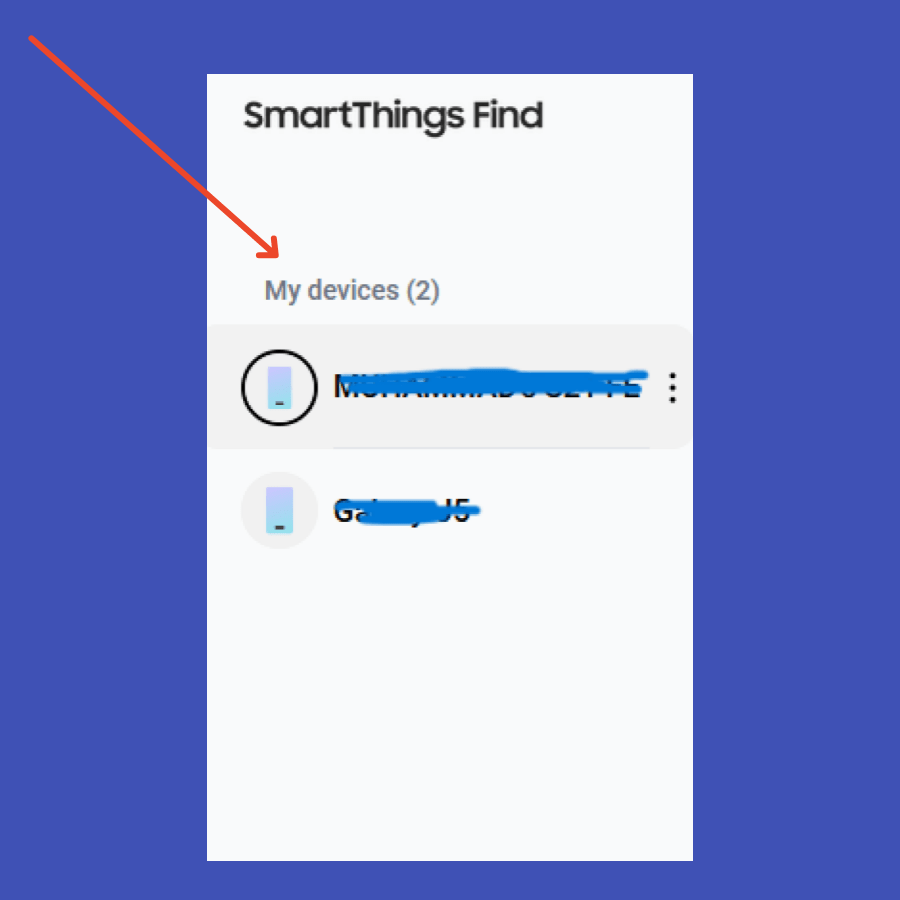
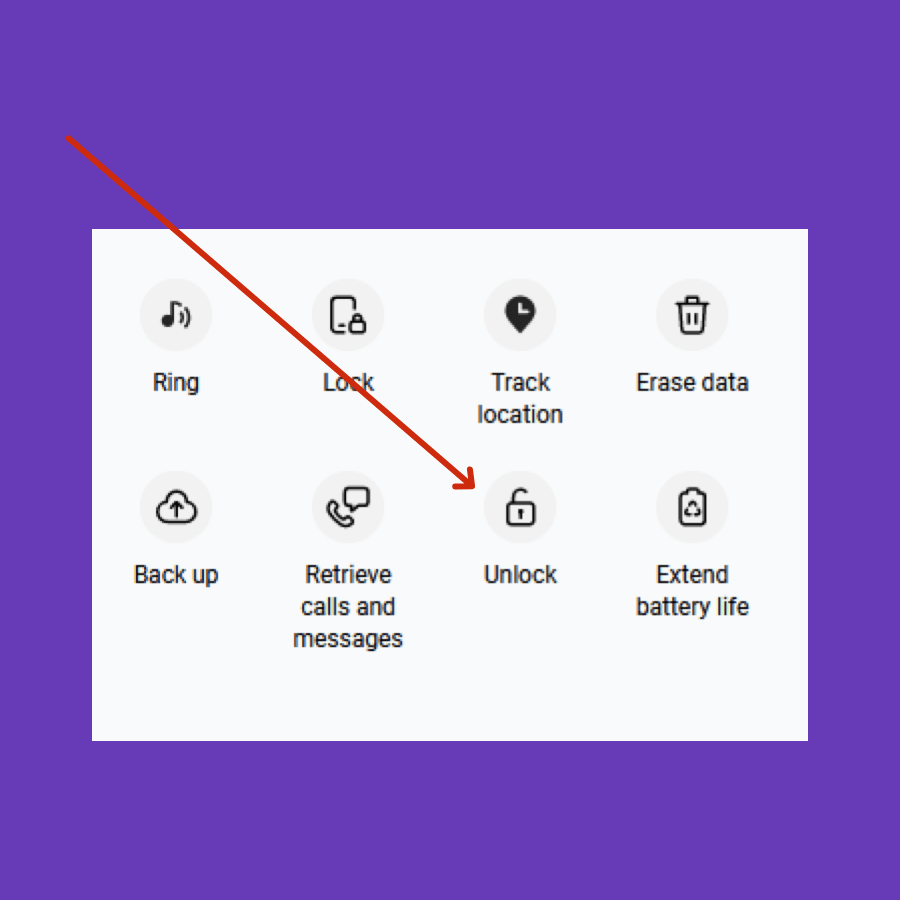
Step 4: Now, select the “Unlock” option from the small pop-up window located at the top right corner of the screen.
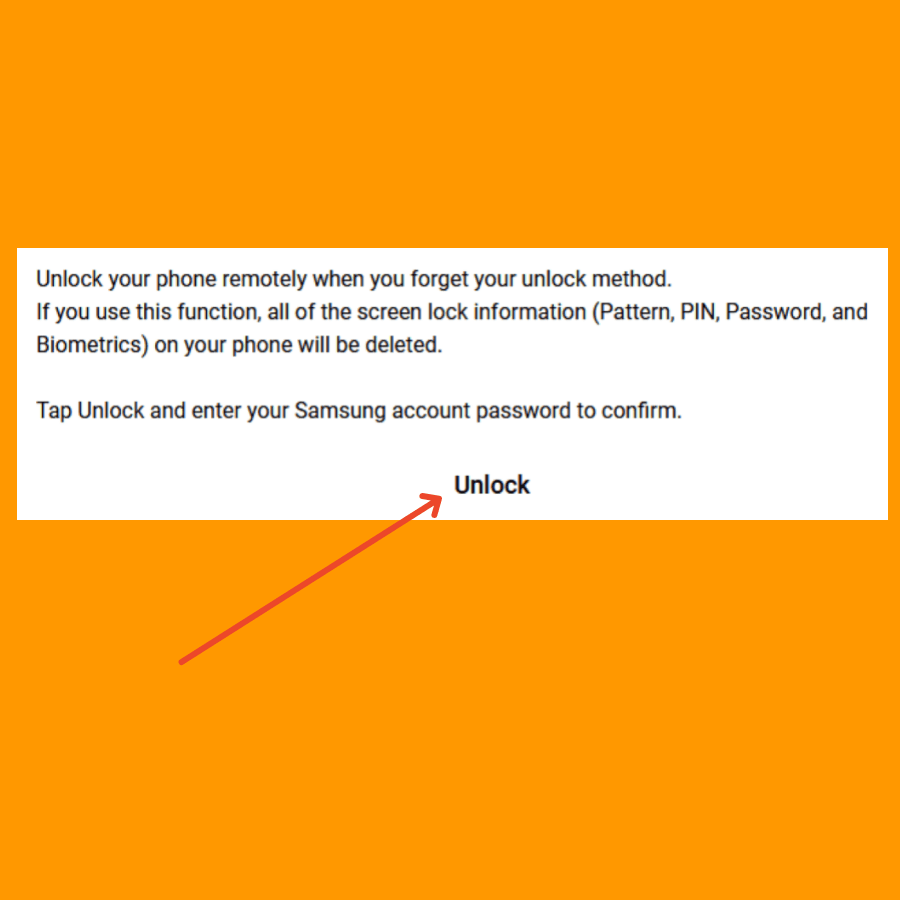
Step 5: After that, it will prompt a warning message stating that “All of the screen lock information (pattern/pin/password and biometrics) on your device will be deleted if you use this function”.
Step 6: Simply, click the “Unlock” option at the bottom and proceed with entering your account password to confirm.
Step 7: Be patient! Wait for the unlocking process to complete and at the end, you will get a message “Your phone is unlocked”.
Unlock Samsung Galaxy S22 Ultra 5G Using your Google Accounts
To unlock Samsung Galaxy S22 Ultra 5G using your Gmail account, follow below-mentioned steps:
Step 1: After multiple wrong attempts, you will get “Forgot Pattern” or “Forgot PIN/Password” option.
Step 2: Login with your Google (Gmail) account by entering its details such as username/password.
Step 3: Once you are logged in successfully, your smartphone will be unlocked.
Unlock Samsung Galaxy S22 Ultra 5G by Answering Google Security Questions
If you have security questions set during under your Google account security, then you will be able to unlock your device by answering these questions.
Step 1: After multiple wrong attempts, you will get “Forgot Pattern” or “Forgot PIN/Password” option.
Step 2: Tap on it, and then select “Answer Questions” option.
Step 3: You will be presented with your Google security questions which you have added in your account. Answer them accordingly.
Step 4: If you answer the security questions correctly, your Samsung Galaxy S22 Ultra 5G will unlock.
Step 5: After successful unlock, you will be asked to create new PIN, Password or Pattern Lock for your Samsung Galaxy S22 Ultra 5G.
Unlock Samsung Galaxy S22 Ultra 5G With Android Data Recovery Tool
Step 1: Simply, download and install the Dr.Fone Software.
Step 2: Once, the software is downloaded, now run it.
Step 3: Connect your smartphone to a computer using original cable.
Step 4: Dr.Fone will start detecting your smartphone.
Step 5: Once the process gets complete, now follow the on-screen instructions accordingly.
Step 6: Choose the options available on Dr.Fone accordingly and you are good to go.
Follow the complete guide on Unlocking Samsung Galaxy S22 Ultra 5G With Dr.Fone Software.
Unlock Samsung Galaxy S22 Ultra 5G Using Android Multi-Tool
Step 1: Download the Android Multi-Tool Software.
Step 2: Moreover, Install the required USB drivers for your particular smartphone model.
Step 3: Connect your smartphone to a computer using original cable.
Step 4: Boot your smartphone into Android boot mode.
Step 5: Launch the software and type in the commands accordingly available in the Multi-tool windows.
Follow the complete guide on Unlocking Samsung Galaxy S22 Ultra 5G Using Android Multi-tool.
Unlock Samsung Galaxy S22 Ultra 5G Using Google Find My Device
While you may be able to unlock your Samsung Galaxy S22 Ultra 5G using Google Find My Device, this method will erase all the data on your phone.
Here’s how you can do so:
Step 1: Open Google Find My Device and sign in with your Google account.
Step 2: After successful login, you need to select “Erase device” option followed by “Erase all data”.
Step 3: As soon as you hit “Erase” button, the data deletion on your Android device will begin.
What No Longer Works on Galaxy S22 Ultra (2026 Update)
Due to Samsung Knox security and Android updates, these methods no longer work:
- Google “Forgot Pattern” after multiple attempts
- Security questions unlock
- ADB commands without USB debugging enabled
- Third-party unlock APK apps
- Most PC-based bypass tools
Samsung strengthened security in One UI 5 and 6.
Be cautious of websites claiming “100% no data loss unlock software.”
Important Note for US Carrier Models
If your S22 Ultra is from:
- Verizon
- AT&T
- T-Mobile
Screen unlocking (PIN/password) is different from SIM unlocking.
This guide addresses screen lock only.
Carrier unlocking requires contacting your mobile carrier.
How to Avoid Getting Locked Out Again
After regaining access:
- Enable Smart Lock
- Turn on SmartThings Find
- Add fingerprint + face unlock
- Keep Samsung and Google account details updated
- Store backup credentials in a secure password manager
Frequently Asked Questions (FAQs)
Yes, if SmartThings Find was enabled before lockout.
No. You must enter the previously synced Google account.
Not without Samsung or Google account credentials.
Most do not work on modern Samsung security and may cause further lock issues.
Conclusion

Final Recommendation (2026)
If SmartThings Find is available, use it immediately to avoid data loss.
If not, a factory reset is the only guaranteed solution.
Samsung security is strong by design — which protects your privacy.