
Forgot your Samsung Galaxy S25 series password, PIN, or pattern? Don’t panic. Samsung and Android provide several official ways to unlock your phone—including an option to unlock using a previous screen lock without losing data.
This guide explains all safe and working methods, step by step.
⚠️ Some methods will erase your data. Always try non-reset options first.
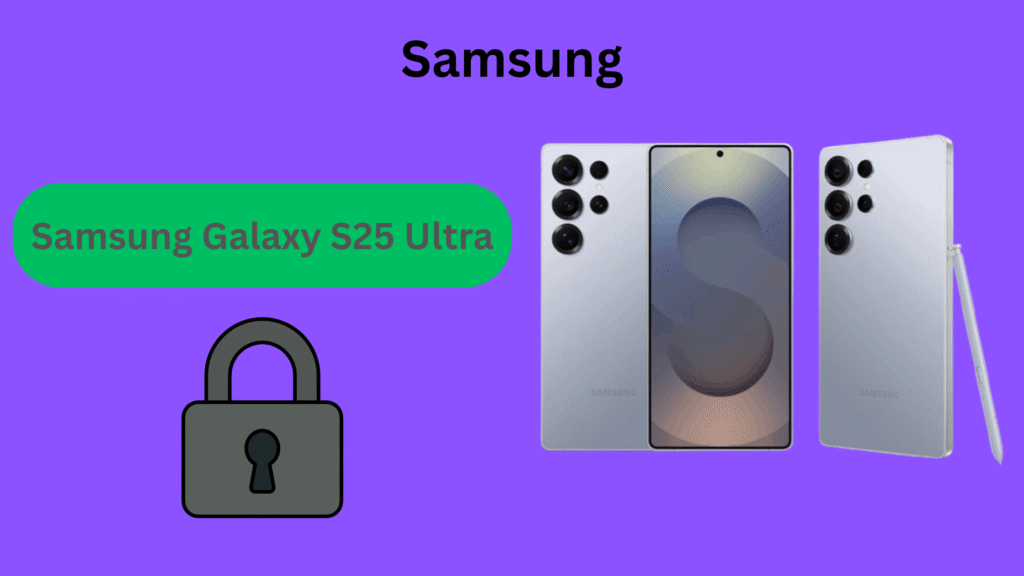
Method 1: Unlock Samsung Galaxy S25 Using Samsung Find My Mobile (No Data Loss)
This is the best and safest method if your phone is linked to a Samsung account.
Steps:
- Open findmymobile.samsung.com on another device
- Sign in with the Samsung account used on your Galaxy S25
- Select your Galaxy S25 from the device list
- Click Unlock
- Enter your Samsung account password
- Your phone will unlock remotely
Pros:
✔ No factory reset
✔ No data loss
Requirements:
- Samsung account enabled
- Internet connection on the phone
Method 2: Unlock Galaxy S25 Using Previous Screen Lock (If Available)
Samsung allows you to unlock your phone using a previous lock method under certain conditions.
When this option appears:
- You recently changed your PIN, password, or pattern
- Usually available for up to 72 hours after the change
Steps:
- Enter the wrong password multiple times
- Tap “Use previous screen lock” (if shown)
- Enter your old PIN / pattern / password
- The phone unlocks—set a new lock immediately
Pros:
✔ No data loss
✔ No account login required
Cons:
✘ Option disappears after time limit
Method 3: Unlock Samsung Galaxy S25 Using Google Find My Device (Factory Reset)
If Samsung Find My Mobile isn’t enabled, Google’s service can reset your device.
Steps:
- Go to google.com/find
- Sign in with the Google account linked to your Galaxy S25
- Select your device
- Tap Erase device
- Confirm the reset
After reset:
- Set up the phone again
- Log in with the same Google account (Factory Reset Protection)
Note:
❌ This method deletes all local data
Method 4: Hard Reset Samsung Galaxy S25 Using Recovery Mode
Use this only as a last resort.
Steps:
- Power off the Galaxy S25
- Press and hold Volume Up + Power
- Release when the Samsung logo appears
- In Recovery Mode, select Wipe data/factory reset
- Confirm and reboot
After reboot:
- Sign in with the previous Google account to complete setup
Warning:
❌ All data will be erased
Can You Unlock Samsung Galaxy S25 Without Losing Data?
Yes—but only if you use:
- Samsung Find My Mobile
- Previous screen lock option
All factory reset methods will erase data.
Tips to Prevent Getting Locked Out Again
- Enable Samsung Find My Mobile
- Keep fingerprint or face unlock active
- Avoid changing screen locks too frequently
- Store passwords securely
Yes. Use Samsung Find My Mobile or the previous screen lock option if available.
There’s no fixed number. It appears only if the lock was changed recently and the option hasn’t expired.
No. You must log in with the previous Google account due to FRP (Factory Reset Protection).
Yes, but you must provide proof of purchase and identity. Data may still be erased.
No. The Unlock option keeps all files intact.