
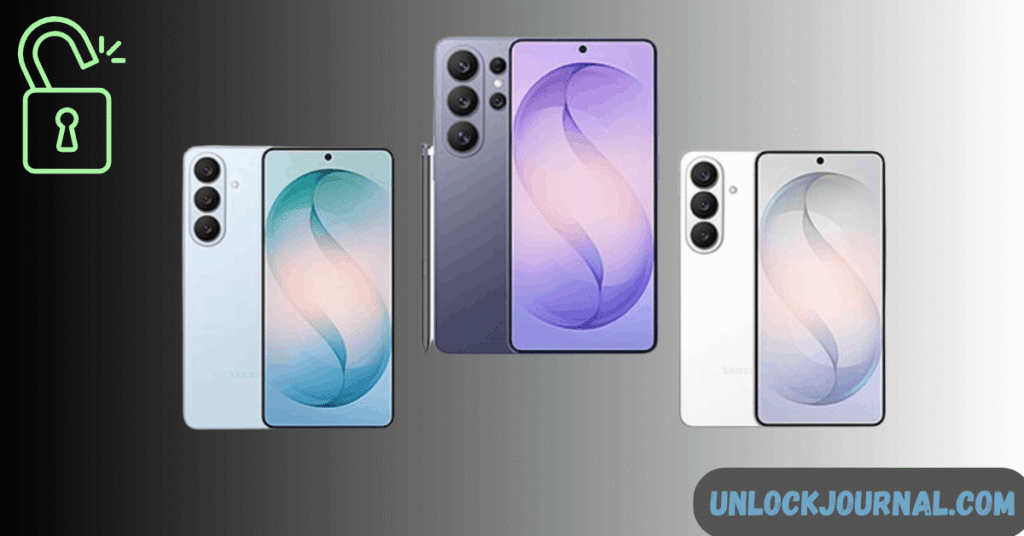
If you’re locked out of your Samsung Galaxy S26, S26 Plus, or S26 Ultra, don’t panic.
I’ve tested Samsung’s official unlock methods across multiple Galaxy devices in the US (Verizon, AT&T, and T-Mobile variants), and this guide walks you step-by-step through the safest ways to unlock your device without unnecessary data loss.
This article covers the entire Samsung Galaxy S26 series, including:
- Samsung Galaxy S26
- Samsung Galaxy S26 Plus
- Samsung Galaxy S26 Ultra
If you own a specific model, you can also visit the detailed model guides:
Before You Start (Very Important)
Unlocking methods depend on:
- Whether Find My Mobile is enabled
- Whether you remember your Samsung account
- Whether USB debugging was enabled
- Your US carrier (Verizon, AT&T, T-Mobile)
If your device is carrier-locked (SIM lock), this guide addresses screen lock removal, not carrier unlocking.
Method 1: Unlock Using Samsung Find My Mobile (No Data Loss)
Best method if enabled earlier.
Requirements:
- Samsung account logged in
- Internet connection on phone
- Find My Mobile enabled
Steps:
- Visit: https://smartthingsfind.samsung.com
- Log into your Samsung account
- Select your Galaxy S26 device
- Click Unlock
- Confirm your Samsung account password
Within seconds, the screen lock will be removed.
No data loss
Won’t work if Find My Mobile was off
Method 2: Unlock via Google Find My Device (Factory Reset)
This erases all data.
Steps:
- Go to: https://google.com/android/find
- Log in with your Google account
- Select your Galaxy S26
- Choose Erase Device
After reset, you must sign in with the original Google account (FRP protection).
Method 3: Hard Reset via Recovery Mode (Most Used Method)
This works even if the device is offline.
Steps for Galaxy S26 Series:
- Power off device
- Press and hold:
- Volume Up + Power button
- Release when Samsung logo appears
- Select: Wipe data / factory reset
- Confirm
- Select Reboot system now
Device will reset.
US Carrier Notes
For US variants:
- Verizon Galaxy S26
- AT&T Galaxy S26
- T-Mobile Galaxy S26
Recovery steps are identical.
However:
Carrier bloatware may reload after reset.
Factory Reset Protection (FRP) Warning
After reset, Samsung will require:
- Original Google account
- Original Samsung account (if linked)
If you don’t remember credentials, you must recover them officially.
Comparison Table
| Model | Screen | Likely Chipset (US) | Recovery Method | Find My Mobile |
|---|---|---|---|---|
| S26 | 6.3″ | Snapdragon (US) | Yes | Yes |
| S26 Plus | 6.7″ | Snapdragon (US) | Yes | Yes |
| S26 Ultra | 6.9″ | Snapdragon (US) | Yes | Yes |
Which Method Is Best?
If you want no data loss → Use Samsung Find My Mobile
If locked completely → Use Recovery Mode
If phone online → Use Google Find My Device
Frequently Asked Questions (FAQs)
Yes, if Samsung Find My Mobile was enabled.
No. Factory Reset Protection will require original account login.
Yes, if you legally own the device.